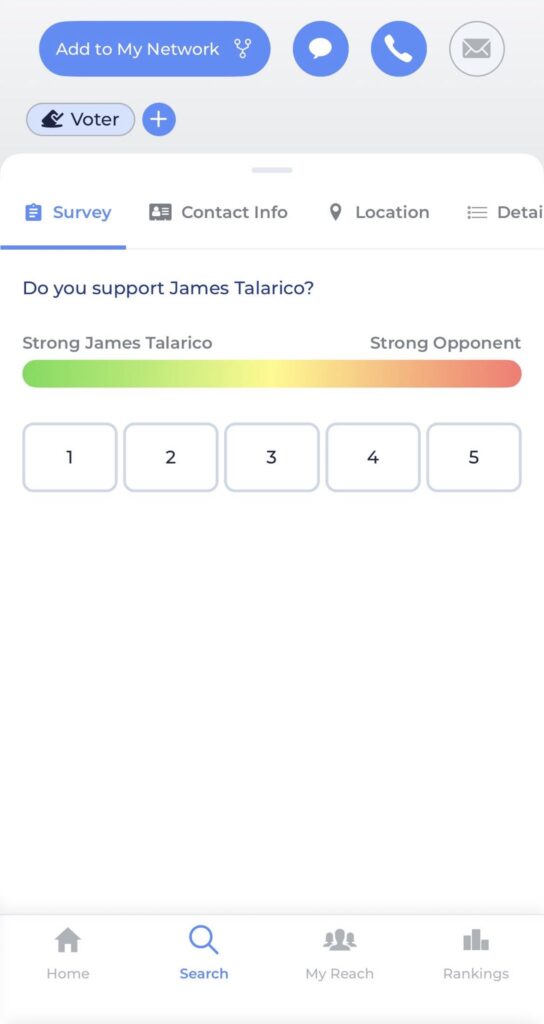
Reach is a grassroots canvassing app that lets you meet potential voters where they already are. Reach makes it easy for you to identify targeted voters in your contacts and network, and voters you engage out in your community, and canvass them in real time. Like any organizing tool, you’re going to get out of it what you put into it, so integrating regular Reach use to your normal organizing activities is very important.
Download Reach & Create Account
- First enter your cell phone number, followed by your name and email.
- You’ll receive a 7-digit authentication code via text.
- Enter the code you receive on the next screen.
- If you can’t get a text, you can choose a call instead.
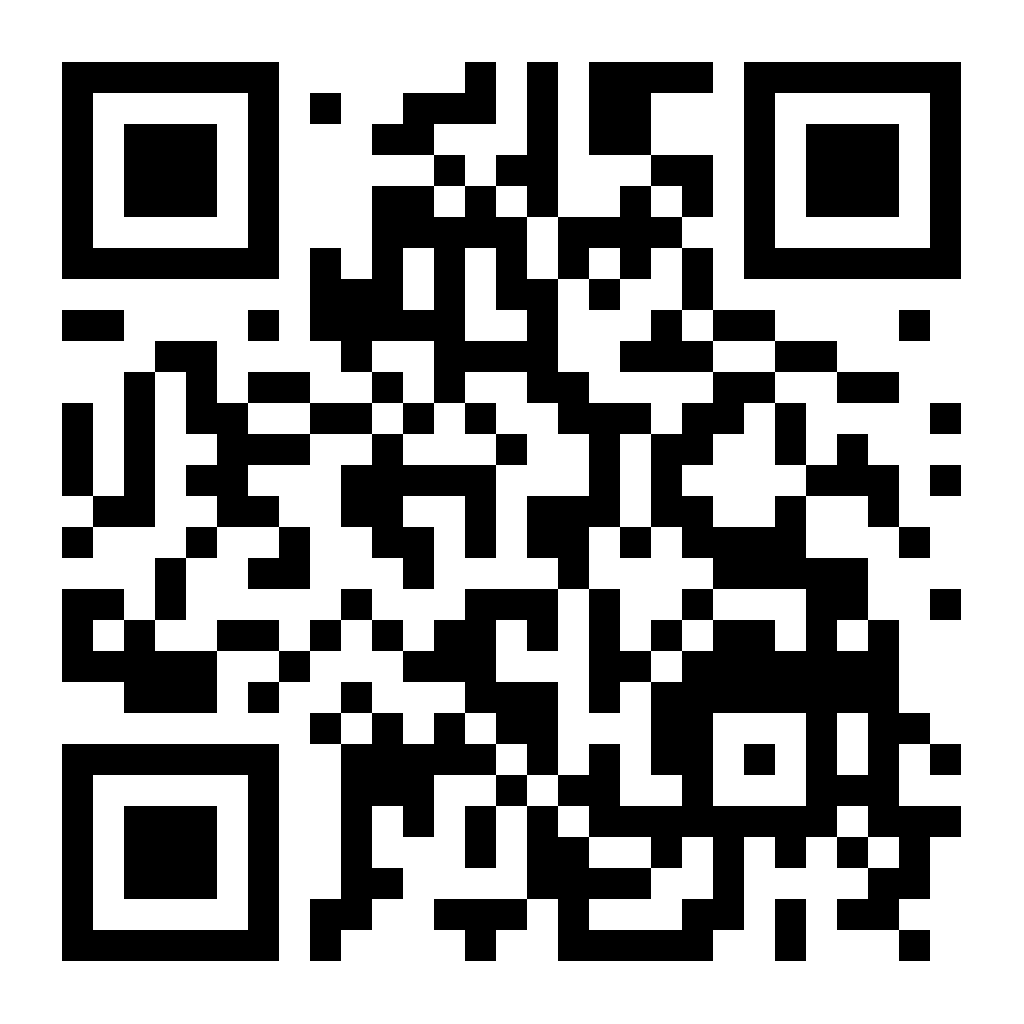
Mobile: on your Android or Apple device, search for “Reach Progressive Organizing” in the App Store or Google Play Store, go to www.reach.vote/download, or point your phone’s camera at this QR code:
Web: Go to https://app.reach.vote. No download needed!
Join Our Campaign Campaign
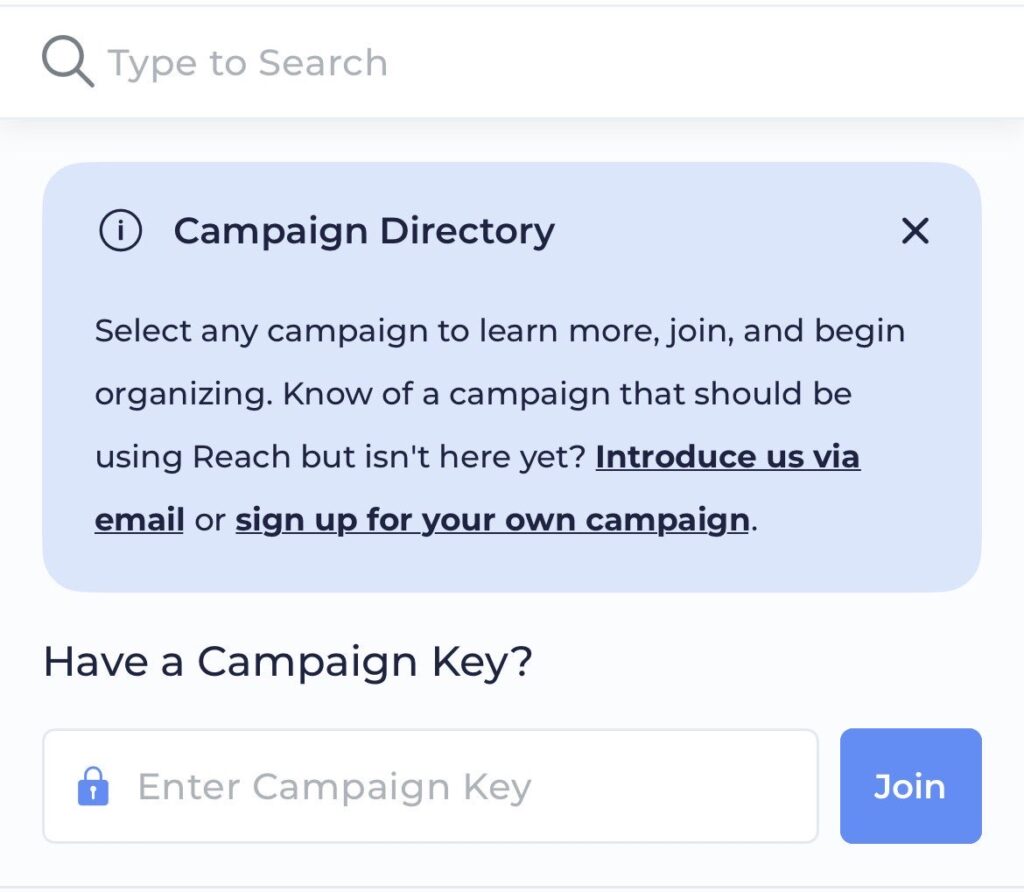
When you have downloaded Reach and set up your account, you’ll be prompted to enter a “campaign key” to join a campaign. Use the key listed below.
Campaign Key: GXWR93
Using Reach
When you successfully join our campaign on Reach, you will land on the “Home” screen. This is where you’ll find our priority actions, our library of content to share online, and more. Review the resources below to start taking action.
Search For A Voter
The heart of Reach is its Search screen. It’s what enables you to identify potential supporters anywhere and at any time. It’s Reach’s main event and how you support our community outreach.
Reach can search by Name or Location. You can use either of these fields if you don’t have much to go on, or combine both of these fields to get a bit more specific.
Both fields are very open and flexible. Type as much information as you have. If you only have a first name and a street name, give it a try!
If you only have a last name and a zip code, that works too!
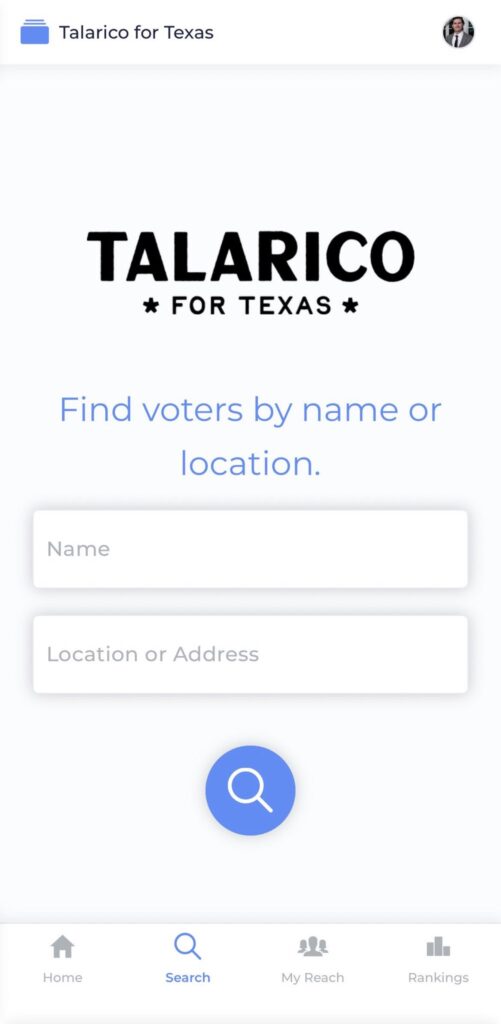
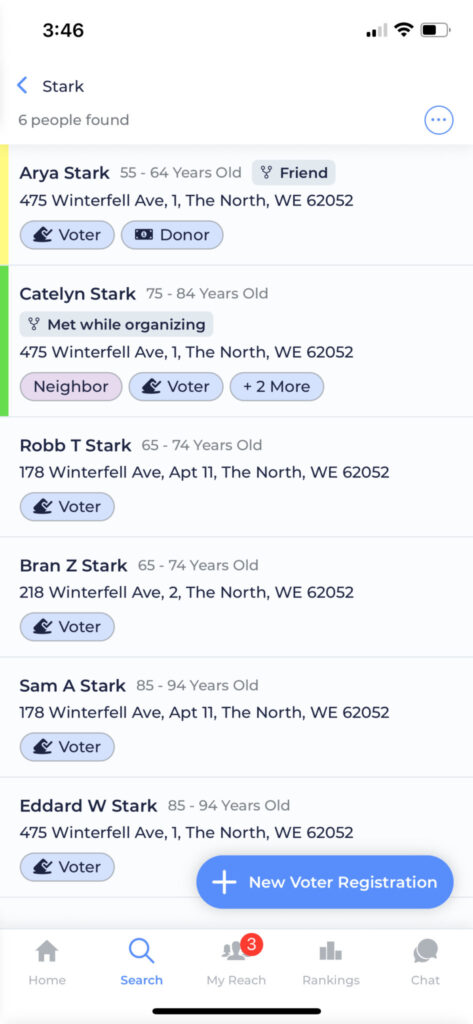
Once you execute your search, you’ll find yourself on the Search Results Page. Here, you’ll see all the results that match your search terms.
At the top of the screen, we’ll show you how many results we’ve found. We will show 50 at a time, but if you scroll down to the bottom of those results, you can tap “More Results” to see the next 50.
By default, these results are sorted by relevance.
Tap on the circle with the three dots in the top right to drill down deeper and refine the results of your search. From the Refine screen, you can adjust what information about a person are visible in your search results, change the sorting of the results, select people to bulk apply or remove tags, and even apply filters to the results if they are supported by your campaign.
Any refinements you make will be remembered for the campaign you made them on and will persist on future searches until you change them. If your refine settings are anything other than the defaults, the refine icon will be adorned with a little dot to indicate that you have made changes. You can then tap the “Reset” button at the top right of the Refine screen if you’d like to reset those settings to their default values.
Tap on a contact in your search results to open the contact view of for the voter. On this page you can direct canvass (survey) them on their support for James Talarico.
You can also confirm it’s the voter you are speaking with by viewing their contact info and location.
Most importantly, you can tap the “Add to My Network” button at the top of your screen to add them to your contact book in Reach to follow up with them later.